Introduction
Windows 11 is the latest operating system developed by Microsoft. It comes with a lot of new features, including a revamped Start menu, new taskbar, and widgets. Widgets are small applications that display information like weather, news, and calendar events on the desktop. However, some users have reported that their Windows 11 widget is not working. In this article, we’ll show you how to troubleshoot this issue.Check for Updates
The first thing you should do is check for updates. Microsoft regularly releases updates that fix bugs and improve performance. To check for updates, go to Settings > Update & Security > Windows Update. Click Check for updates and install any available updates.Restart Your PC
Sometimes, a simple restart can fix the issue. Restart your PC and see if the widget starts working again.Make Sure Widgets are Enabled
Widgets are disabled by default in Windows 11. To enable them, right-click on the taskbar and select Show Widgets.Check Your Internet Connection
Widgets require an internet connection to work. Make sure your internet connection is working properly. You can try restarting your router or modem to fix any connectivity issues.Check Your Firewall Settings
Sometimes, your firewall settings can block widgets from working. Make sure your firewall is not blocking the widget. You can check your firewall settings by going to Settings > Update & Security > Windows Security > Firewall & network protection.Disable Third-Party Antivirus
Third-party antivirus programs can sometimes interfere with the Windows 11 widget. Try disabling your antivirus temporarily and see if the widget starts working.Reset the Widget
If none of the above solutions work, try resetting the widget. To do this, right-click on the widget and select Remove. Then, right-click on the taskbar and select Show Widgets to re-add the widget.Check Your Region and Language Settings
Widgets may not work if your region and language settings are not set correctly. Go to Settings > Time & Language > Region and check that your region is set correctly. Also, check that your language settings are correct.Use a Local Account
If you’re using a Microsoft account to sign in to Windows 11, try switching to a local account. Sometimes, syncing issues with your Microsoft account can cause the widget to not work.Check Your Power Settings
Widgets may not work if your PC is in power-saving mode. Make sure your PC is set to High Performance mode by going to Settings > System > Power & Sleep.Run the Troubleshooter
Windows 11 has a built-in troubleshooter that can detect and fix common issues. Go to Settings > System > Troubleshoot > Additional troubleshooters > Windows Widgets and run the troubleshooter.Uninstall and Reinstall the Widget
If all else fails, try uninstalling and reinstalling the widget. To do this, right-click on the widget and select Uninstall. Then, go to the Microsoft Store and reinstall the widget.Conclusion
The Windows 11 widget is a useful tool for displaying information on your desktop. However, if it’s not working, it can be frustrating. We hope this troubleshooting guide has helped you fix the issue. If you have any other tips or tricks for fixing the Windows 11 widget, feel free to share them in the comments.Related video of Windows 11 Widget Not Working: Troubleshooting Guide
WhatsApp is a popular messaging app that is used by millions of people worldwide. One of the great features of WhatsApp is that it allows you to send messages, make phone calls, and share files with your friends and family for free, as long as you have an internet connection. However, in order to use WhatsApp, you need to have a SIM card installed in your phone. But what if you don't have a SIM card? Is it still possible to use WhatsApp? The answer is yes, and in this article, we will show you how to use WhatsApp without a SIM card.
Method 1: Using a Landline Number
If you don't have a SIM card, you can still use WhatsApp by using a landline number. Here's how:
- Download and install WhatsApp on your phone.
- When prompted to enter your phone number, enter the landline number that you want to use.
- Wait for the verification process to fail. You will then be given the option to verify your number using a phone call.
- Choose the "Call Me" option and wait for the phone call from WhatsApp.
- Answer the phone call and listen to the verification code that is provided.
- Enter the verification code in WhatsApp and you are now ready to use the app without a SIM card.
Note that this method may not work for all landline numbers, as some providers may not support the verification process.
Method 2: Using a Virtual Number
Another option for using WhatsApp without a SIM card is to use a virtual number. A virtual number is a temporary phone number that can be used to verify your WhatsApp account. Here's how:
- Download and install a virtual number app on your phone, such as Hushed or TextNow.
- Sign up for a new account and choose a virtual number.
- Download and install WhatsApp on your phone.
- When prompted to enter your phone number, enter the virtual number that you just obtained.
- Wait for the verification process to complete.
- You are now ready to use WhatsApp without a SIM card.
Note that virtual numbers may not be available in all countries, so you may need to do some research to find a virtual number app that works in your area.
Method 3: Using WhatsApp Web
If you don't have a SIM card and don't want to use a virtual number, another option is to use WhatsApp Web. WhatsApp Web is a web-based version of WhatsApp that can be accessed from any computer or tablet with an internet connection. Here's how:
- Open a web browser on your computer or tablet and go to the WhatsApp Web website.
- Open WhatsApp on your phone and go to the Settings menu.
- Choose the "WhatsApp Web/Desktop" option.
- Scan the QR code on the WhatsApp Web website with your phone.
- You are now ready to use WhatsApp on your computer or tablet without a SIM card.
Note that in order to use WhatsApp Web, you need to have WhatsApp installed on your phone and connected to the internet.
Conclusion
Using WhatsApp without a SIM card is possible, thanks to the various methods that we have outlined in this article. Whether you choose to use a landline number, a virtual number, or WhatsApp Web, you can stay connected with your friends and family on WhatsApp, even if you don't have a SIM card.
Related video of WhatsApp Sans Carte SIM: How to Use WhatsApp Without a SIM Card
With the increasing use of smartphones and tablets, it's becoming more and more important to monitor and control screen time. Samsung devices, like other Android devices, offer a built-in feature called Digital Wellbeing that helps you track your screen time and set limits on app usage. In this article, we'll show you how to access and use this feature on your Samsung device.
What is Digital Wellbeing?
Digital Wellbeing is a feature introduced by Google in Android 9 Pie that helps you understand and manage the time you spend on your device. It provides you with detailed insights into your app usage, including how many times you've unlocked your phone, how many notifications you've received, and how much time you've spent on each app.
With Digital Wellbeing, you can set app timers to limit your usage of specific apps, and even set a bedtime mode that turns your screen to grayscale to reduce the blue light emitted by your phone and help you sleep better.
How to Access Digital Wellbeing on Samsung Devices
To access Digital Wellbeing on your Samsung device, follow these steps:
- Open the Settings app on your device.
- Scroll down and tap on "Digital Wellbeing and Parental Controls".
- Tap on "Show your data".
- Here, you'll see a detailed overview of your screen time, app usage, and notifications.
How to Set App Timers on Samsung Devices
To set app timers on your Samsung device, follow these steps:
- Open the Settings app on your device.
- Scroll down and tap on "Digital Wellbeing and Parental Controls".
- Tap on "Dashboard".
- Here, you'll see a list of all your apps and how much time you've spent on each app.
- Tap on an app to see more details about its usage.
- Scroll down and tap on "Set timer".
- Choose the amount of time you want to allow yourself to use the app each day.
How to Set a Bedtime Mode on Samsung Devices
To set a bedtime mode on your Samsung device, follow these steps:
- Open the Settings app on your device.
- Scroll down and tap on "Digital Wellbeing and Parental Controls".
- Tap on "Wind Down".
- Here, you can choose the time you want your phone to enter bedtime mode.
- You can also choose to turn on Grayscale, which will turn your screen to grayscale during bedtime mode.
Other Tips for Managing Screen Time on Samsung Devices
Here are some other tips for managing screen time on your Samsung device:
- Use the "Do Not Disturb" mode to silence notifications during certain times of the day.
- Turn off unnecessary notifications to reduce distractions.
- Set boundaries for yourself and stick to them.
- Take breaks from your device and engage in other activities.
Conclusion
Voir son temps d'écran Samsung, or monitoring and controlling screen time on your Samsung device, is crucial for maintaining a healthy relationship with technology. With Digital Wellbeing and other features on your Samsung device, you can gain insights into your screen time and set limits on your app usage. By following the tips outlined in this article, you can manage your screen time and reduce the negative effects of excessive device usage.
Related video of Voir Son Temps D'écran Samsung: How to Monitor and Control Screen Time on Your Samsung Device
Introduction
As we use different applications on our devices, data tends to accumulate in the form of caches. These caches can take up a significant amount of storage space and can also slow down the application's performance. Microsoft Teams is no exception when it comes to caches.What is Microsoft Teams?
Microsoft Teams is a collaboration platform that allows teams to communicate, collaborate, and share files within an organization. As users work on various tasks and projects, they may experience slow performance or encounter bugs. This is where clearing the cache can help.Why Clear Microsoft Teams Cache?
Clearing the cache in Microsoft Teams can help to improve its performance and fix any bugs or errors that users may encounter. It can also free up storage space on your device.Step-by-Step Guide to Clearing the Cache on Microsoft Teams
Now that we understand the importance of clearing the cache let's dive into the steps that you need to follow to clear the cache in Microsoft Teams.
Step 1: Exit Microsoft Teams
The first step is to exit Microsoft Teams. Make sure that you are not running it in the background.
Step 2: Clear Cache on Windows
If you are using Microsoft Teams on Windows, follow these steps:
- Press the Windows key + R to open the Run dialog box.
- Type %appdata%\Microsoft\Teams and press Enter.
- Delete all the files and folders in the Teams folder.
- Restart Microsoft Teams.
Step 3: Clear Cache on Mac
If you are using Microsoft Teams on a Mac, follow these steps:
- Exit Microsoft Teams.
- Open Finder and select Go to Folder from the Go menu.
- Type ~/Library/Application Support/Microsoft/Teams and press Go.
- Delete all the files and folders in the Teams folder.
- Restart Microsoft Teams.
Step 4: Clear Cache on Android
If you are using Microsoft Teams on an Android device, follow these steps:
- Open Settings and select Apps or Application Manager.
- Select Microsoft Teams from the list of apps.
- Select Storage.
- Select Clear Cache.
Step 5: Clear Cache on iOS
If you are using Microsoft Teams on an iOS device, follow these steps:
- Open Settings and select General.
- Select iPhone Storage or iPad Storage.
- Select Microsoft Teams from the list of apps.
- Select Offload App to free up storage space or select Delete App to delete the app and its data.
Conclusion
Clearing the cache in Microsoft Teams can help to improve its performance and free up storage space on your device. By following the steps outlined in this article, you can easily clear the cache in Microsoft Teams on Windows, Mac, Android, and iOS devices.
Related video of Vider le cache Teams: A Step-by-Step Guide
What is Adenoid Vegetation?
Adenoid vegetation or adenoid hypertrophy refers to the enlargement of the adenoids, which are a mass of lymphoid tissue located at the back of the nasal cavity. Adenoids play a crucial role in the immune system, but their enlargement can cause various health problems.
Symptoms of Adenoid Vegetation
The most common symptoms of adenoid vegetation include snoring, difficulty breathing through the nose, mouth breathing, sleep apnea, nasal congestion, ear infections, and recurrent sore throat.
Causes of Adenoid Vegetation
The exact cause of adenoid vegetation is unknown, but it is believed to be related to frequent infections, allergies, and genetic factors.
Diagnosis of Adenoid Vegetation
A doctor can diagnose adenoid vegetation by examining the nasal cavity and throat using a special instrument called an endoscope. Imaging tests like X-rays or CT scans may also be used to confirm the diagnosis.
Treatment Options for Adenoid Vegetation
There are several treatment options for adenoid vegetation, including medication, surgery, and natural remedies. In this article, we will focus on natural remedies that can help alleviate the symptoms of adenoid vegetation.
1. Salt Water Gargle
Gargling with salt water can help reduce inflammation and soothe a sore throat. Mix a teaspoon of salt in a glass of warm water and gargle several times a day.
2. Honey
Honey has antibacterial and anti-inflammatory properties that can help soothe a sore throat and reduce coughing. Mix a tablespoon of honey in warm water or tea and drink it several times a day.
3. Turmeric
Turmeric has anti-inflammatory and antioxidant properties that can help reduce inflammation and boost the immune system. Mix a teaspoon of turmeric powder in warm milk and drink it before bedtime.
4. Eucalyptus Oil
Eucalyptus oil has antimicrobial and anti-inflammatory properties that can help reduce inflammation and clear nasal congestion. Add a few drops of eucalyptus oil to a bowl of hot water and inhale the steam.
5. Ginger
Ginger has anti-inflammatory and antibacterial properties that can help reduce inflammation and boost the immune system. Add a few slices of ginger to a cup of hot water and drink it several times a day.
6. Vitamin C
Vitamin C is an antioxidant that can help boost the immune system and reduce inflammation. Eat foods rich in vitamin C, such as citrus fruits, berries, and leafy green vegetables.
7. Zinc
Zinc is a mineral that can help boost the immune system and reduce inflammation. Eat foods rich in zinc, such as oysters, beef, and pumpkin seeds.
8. Steam Inhalation
Steam inhalation can help clear nasal congestion and reduce inflammation. Boil a pot of water and inhale the steam by placing a towel over your head and breathing deeply.
9. Probiotics
Probiotics are beneficial bacteria that can help boost the immune system and reduce inflammation. Eat foods rich in probiotics, such as yogurt, kefir, and fermented vegetables.
10. Acupuncture
Acupuncture is a traditional Chinese medicine practice that involves inserting thin needles into specific points on the body to stimulate healing. It can help reduce inflammation and boost the immune system.
Conclusion
Adenoid vegetation can cause various health problems and affect your quality of life. Natural remedies can help alleviate the symptoms and boost your immune system. However, it is important to consult with a doctor before trying any new treatment.
Related video of Végétation Adénoïde Traitement Naturel: A Comprehensive Guide

Instagram is one of the most popular social media platforms today, with millions of users sharing their photos and videos every day. However, there may be times when you need to contact a particular Instagram user, but you don't have their email address. In this article, we will show you how to find the email address of an Instagram account.
Method 1: Check the Bio or Contact Information

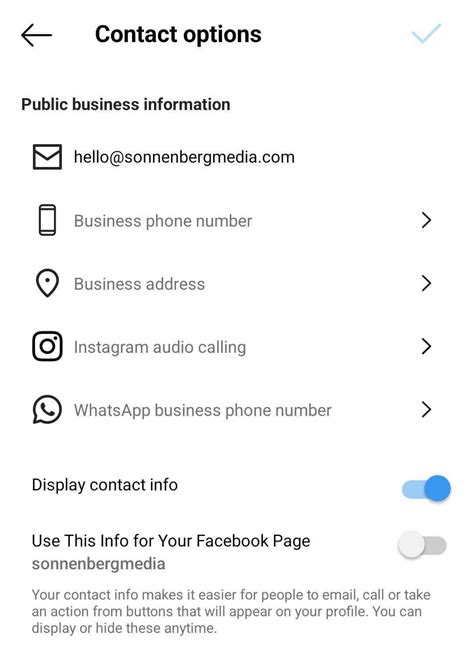
The first place to look for an Instagram user's email address is their bio or contact information. Many users include their email address in their bio, so it's worth checking there first. To view their bio, simply go to their profile and tap on their username. If they have included their email address, you will see it listed in their bio.
If the user has not included their email address in their bio, check their contact information. This can be found by tapping the three dots in the top right-hand corner of their profile and selecting "Contact." If they have included their email address, you will see it listed there.
Method 2: Google Search
If you can't find the email address in the user's bio or contact information, try doing a Google search. Simply type in the username of the Instagram account followed by the word "email." For example, if the username is "johndoe," type in "johndoe email" and hit enter. This may bring up results that include the user's email address.
You can also try searching for the user's name and location along with the word "email" to narrow down your search results. For example, if the user is named John Doe and lives in New York, you can try searching for "John Doe New York email."
Method 3: Use a Third-Party Tool
If the above methods do not work, you can try using a third-party tool to find the user's email address. There are many email finder tools available online that can help you find email addresses based on a user's name, location, and other details.
Some popular email finder tools include Hunter.io, Voila Norbert, and Clearbit Connect. Simply enter the user's name and any other details you have, and the tool will search its database to find the email address.
Conclusion
Finding the email address of an Instagram account can be challenging, but with these methods, you can increase your chances of success. Start by checking the user's bio or contact information, then try doing a Google search or using a third-party tool. With a little bit of effort, you can find the email address you need to connect with the Instagram user.
Related video of How to Find the Email Address of an Instagram Account
If you own a Mac, you might be wondering what the best word processing software is. There are many options out there, but Apple's own "Pages" program is one of the most popular. In this article, we'll take a closer look at traitement de texte Mac and what it can do for you.
What is Traitement de Texte Mac?
Traitement de texte Mac is the French term for word processing on a Mac computer. It refers to any software that allows you to create, edit, and format text documents. The most well-known traitement de texte Mac program is Microsoft Word, but there are many other options available as well.
Pages: The Default Traitement de Texte Mac Program
If you're looking for a traitement de texte Mac program that comes pre-installed on your computer, Pages is a great choice. Pages is Apple's own word processing program and it's free for Mac users. It's easy to use and has many features that make it a great choice for both personal and professional use.
One of the main advantages of Pages is that it's compatible with Microsoft Word documents, so you can easily share your work with others who use Word. Pages also has many templates and pre-made designs that can make your documents look more professional.
Microsoft Word for Mac
Microsoft Word is one of the most popular word processing programs in the world, and it's also available for Mac. If you're already familiar with Word, you might prefer to use it on your Mac as well.
The Mac version of Word has all the same features as the Windows version, including the ability to collaborate with others in real-time. Word also has many add-ons and plugins available that can enhance its functionality.
Other Traitement de Texte Mac Programs
There are many other traitement de texte Mac programs available as well. Some of the most popular include:
- OpenOffice
- LibreOffice
- Google Docs
- Scrivener
Each of these programs has its own advantages and disadvantages, so it's important to do your research to find the one that's right for you.
Tips for Using Traitement de Texte Mac Programs
Here are some tips to help you get the most out of your traitement de texte Mac program:
- Use keyboard shortcuts to save time.
- Take advantage of the program's formatting tools to make your documents look more professional.
- Use templates to get started quickly.
- Collaborate with others by sharing your documents through the cloud.
- Back up your documents regularly to prevent data loss.
Conclusion
Traitement de texte Mac programs are essential tools for anyone who needs to create and edit text documents on a Mac computer. Whether you choose Pages, Word, or another program, there are many options available to suit your needs.
By following the tips in this article, you can get the most out of your traitement de texte Mac program and create documents that look professional and polished.